
How to Transcribe MP3 Audio to Text for Free
How to Transcribe MP3 Audio to Text for Free (2025 Guide)
Admin 2024-12-16
Why Transcribe Audio Files to Text?
In the digital age, we record everything: lectures, interviews, podcasts, and business meetings. However, audio files have one major flaw: they are "black boxes." You cannot see what is inside them without listening to the whole thing.
Converting MP3 audio into readable text (transcription) unlocks the value hidden in your recordings. Here is why professionals and students are doing it:
Searchable Archives: You can't "Ctrl+F" an MP3 file. By converting audio to text, you can instantly search for specific keywords, quotes, or topics discussed in an hour-long recording.
Podcast Show Notes: For podcasters, a transcript is essential. It provides content for your website's show notes, improves SEO, and helps listeners scan the episode's content before hitting play.
Meeting Minutes: Turning a recorded brainstorming session or client meeting into text ensures no detail is lost. It allows you to quickly summarize action items without taking furious notes during the call.
Accessibility: Text transcripts make your audio content accessible to the deaf and hard-of-hearing community, ensuring your message reaches everyone.
Streamlined Editing: Reading a script is faster than listening to audio. You can identify the parts you want to keep or cut from your final production just by looking at the text.
Turning MP3 to text is no longer a luxury; it's a productivity hack. Let's look at how to do it efficiently.
Step-by-Step Guide to Convert MP3 to Text
Gone are the days of manual transcription services that charge by the minute. You can now use AI-powered tools to do the heavy lifting. We will use GetTheScript for this tutorial because it handles file uploads directly in the browser.
Step 1: Open the Audio Transcriber
First, navigate to GetTheScript.app.
While many people know this tool for its YouTube features, it also has a powerful File Upload capability designed for MP3s, M4As, and other audio formats.
Why use this tool?
- Privacy: It processes files quickly.
- No Accounts: You don't need to register to get started.
- Simplicity: A clean interface without complex settings.
Step 2: Upload Your MP3 File
On the homepage, look for the "Upload" or "File" tab (next to the URL input).
- Click the "Select File" button or drag and drop your MP3 file into the designated area.
- The tool supports standard audio formats.
- Once selected, the upload process will begin immediately.

Note: Upload speeds depend on your internet connection and file size. For very long recordings (1 hour+), give it a moment to process.
Step 3: Extract and Export
Once the AI finishes analyzing your audio file, the text will appear on the screen.
- Review: Scroll through the generated text to check for accuracy.
- Copy: Use the "Copy" button to grab the entire transcript.
- Format: Paste it into Google Docs, Word, or Notion to format it into paragraphs or bullet points.
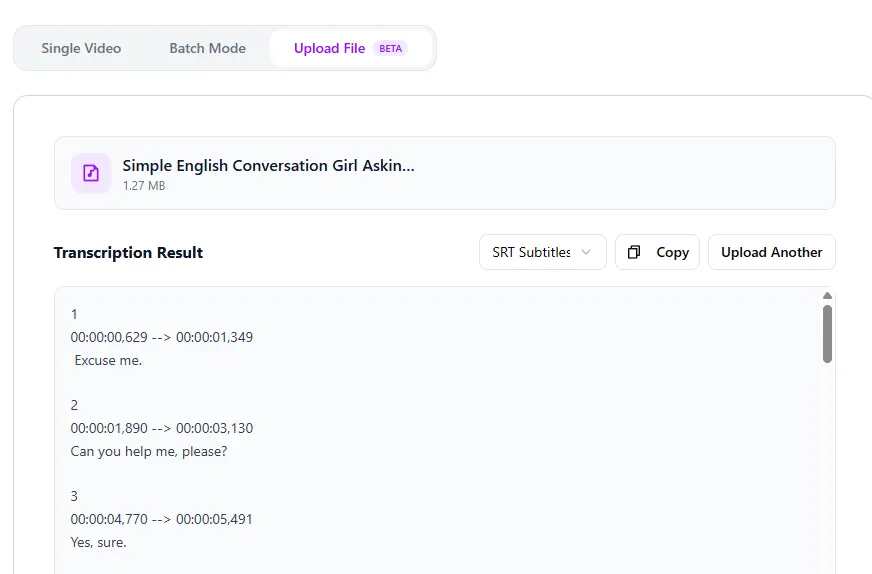
You have now successfully turned a locked audio file into editable text.
Tips for Better Audio Transcription Results
AI is smart, but it's not magic. The quality of your transcript depends heavily on the quality of your audio source. Here is how to get the best results:
Minimize Background Noise If you are recording an interview in a busy cafe, the AI might struggle to separate voices from the background clatter. Always try to record in a quiet room.
One Speaker at a Time AI engines can get confused when people talk over each other. If you are recording a meeting, encourage participants to speak clearly and take turns.
Microphone Proximity Keep the microphone close to the speaker. A phone recording from across the room will sound "echoey" and result in lower accuracy.
Post-Editing is Key Always treat the AI output as a "Draft." You will need to do a quick pass to correct proper nouns, brand names, or specific industry jargon that the AI might have misheard.
Other Tools for Audio Transcription
There are many tools in the market. How does GetTheScript compare to others?
Microsoft Word Online
- Features: Microsoft 365 (Word Online) has a "Transcribe" button in the dictation toolbar.
- Pros: Integrated into your document editor.
- Cons: Requires a Microsoft account/subscription for full features. Limited minutes per month for uploaded audio.
Descript
- Features: A full audio/video editing suite that edits media by editing text.
- Pros: Incredible for podcasters who want to edit the audio itself.
- Cons: It is a heavy software download (or complex web app) and can be expensive for casual users. It has a steeper learning curve.
Happy Scribe
- Features: Offers both AI and Human transcription services.
- Pros: Very high accuracy if you pay for the human service.
- Cons: The free AI version is often limited, and the paid tiers are costly for hobbyists.
GetTheScript
- Best For: Quick, free, and hassle-free conversion. When you just need the text now without signing up for a subscription or downloading software, this is your go-to solution.
Converting MP3 to text saves time and makes your content more versatile. Try uploading your first recording today and experience the speed of AI transcription!